Umaxx first-time setup
The first-time setup of a TV box, covering language, remote pairing and the network, with every failure and retry designed.
Overview
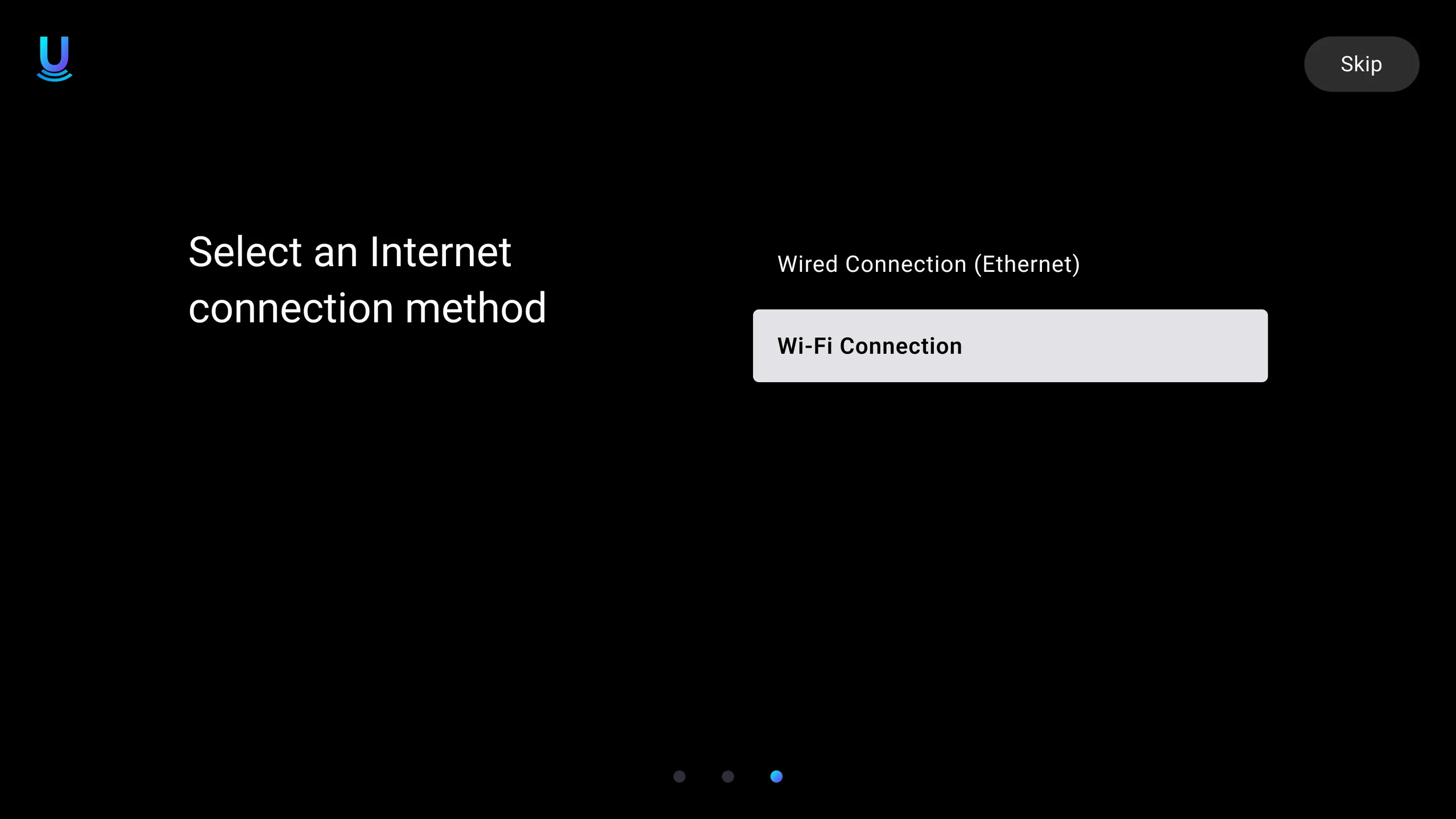
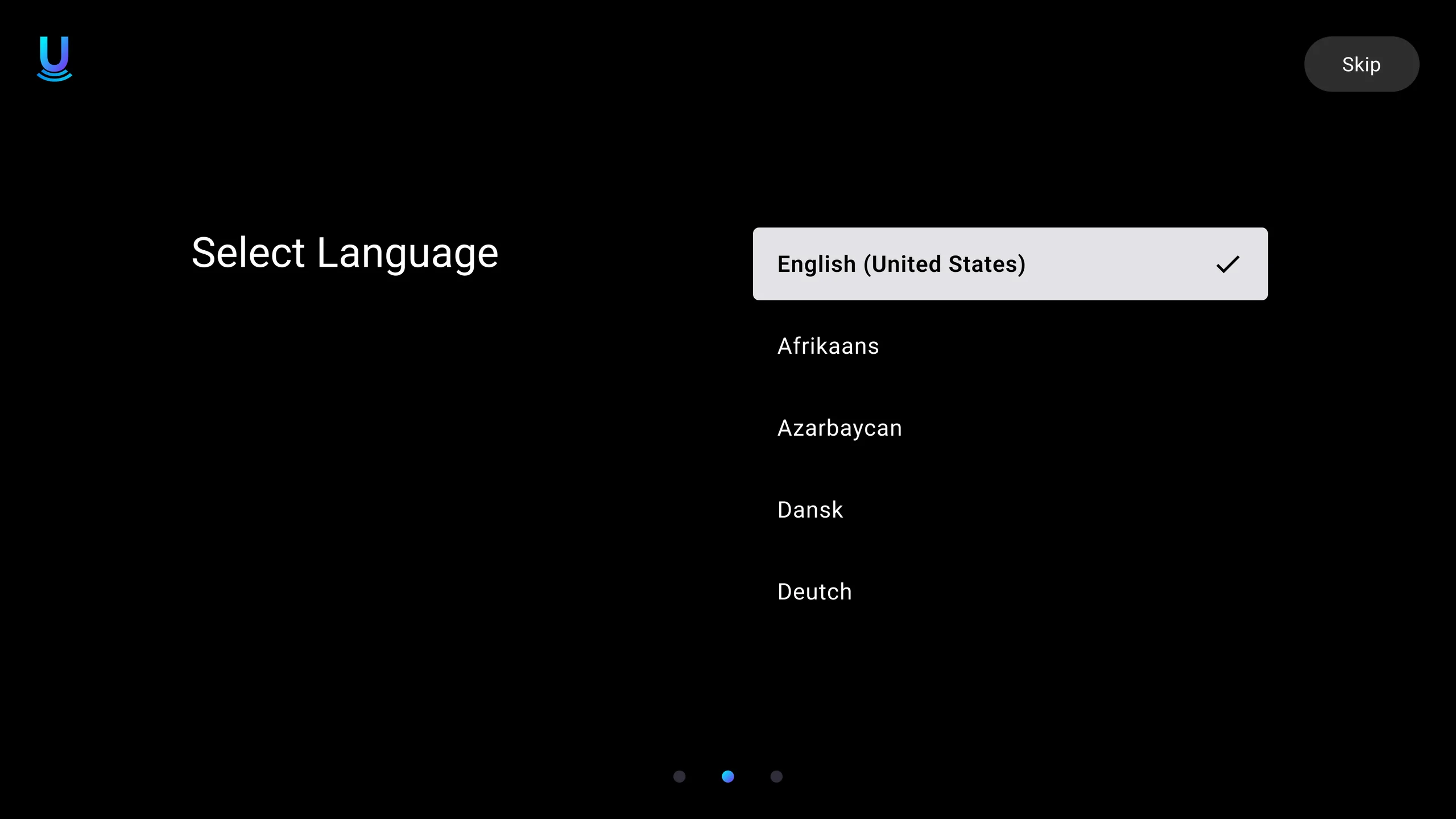
The first-time setup (FTI) for Umaxx TV devices: what someone sees the first time they switch the box on. It covers choosing a language, pairing the remote, choosing Wi-Fi or Ethernet, connecting, and recovering when something goes wrong. The full flow is 76 screens, including the focus, back and skip state of each step.
My role
UX Designer. I mapped the flow and designed every step, branch and state.
Design approach
- The same two columns on every step. The instruction is on the left; the one list or action is on the right. Progress dots and a Skip button are always in the same place.
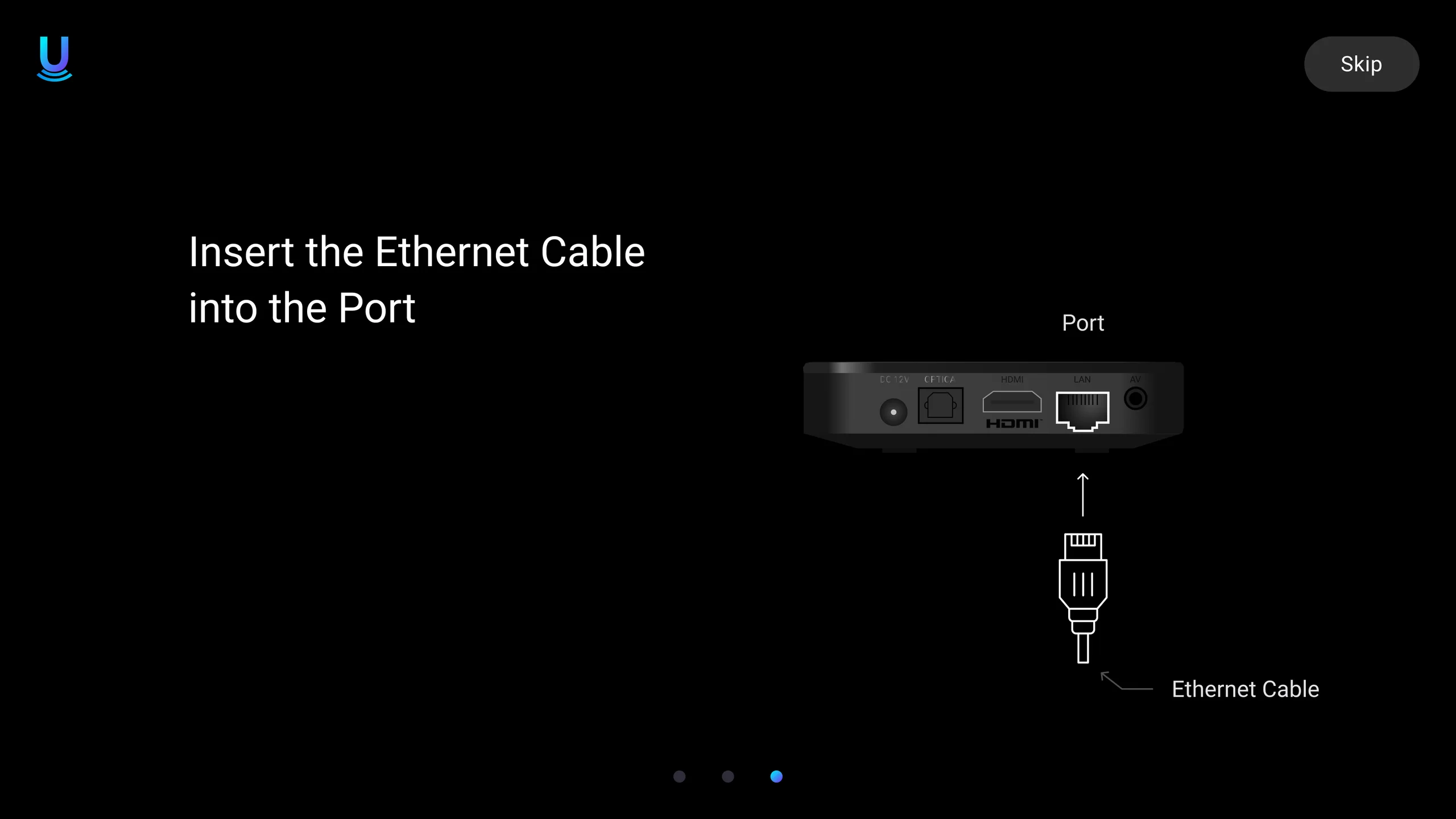
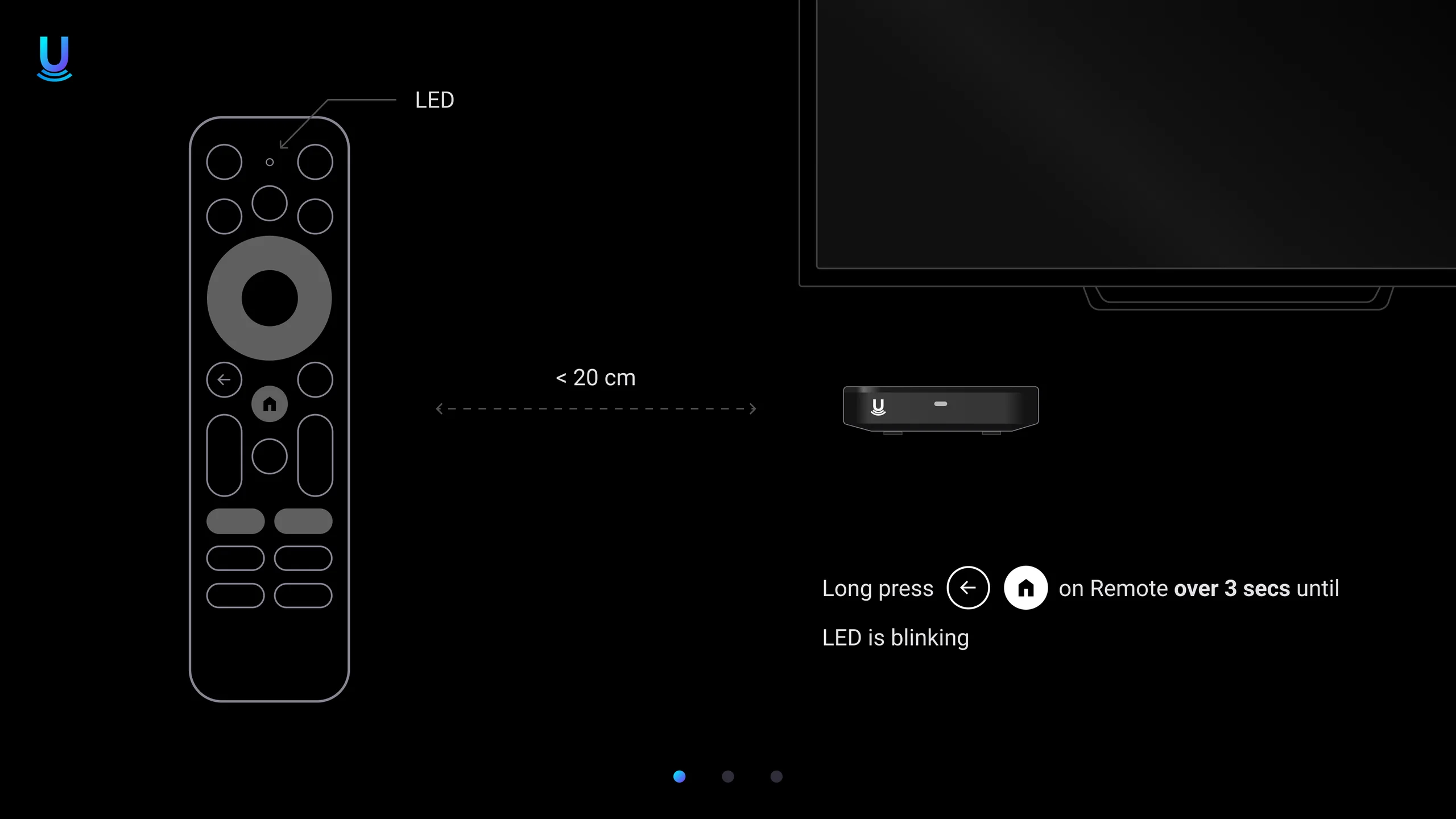
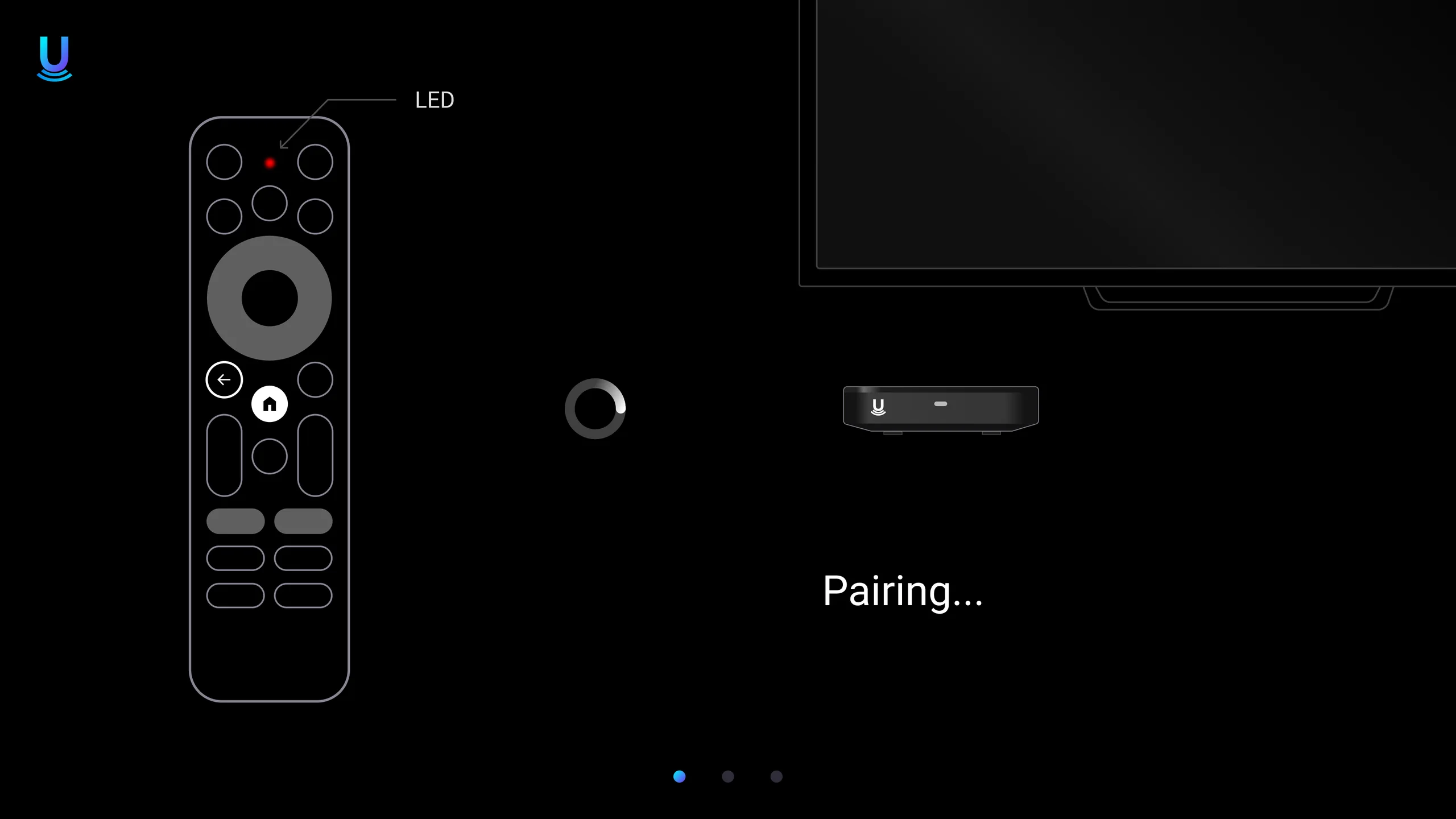
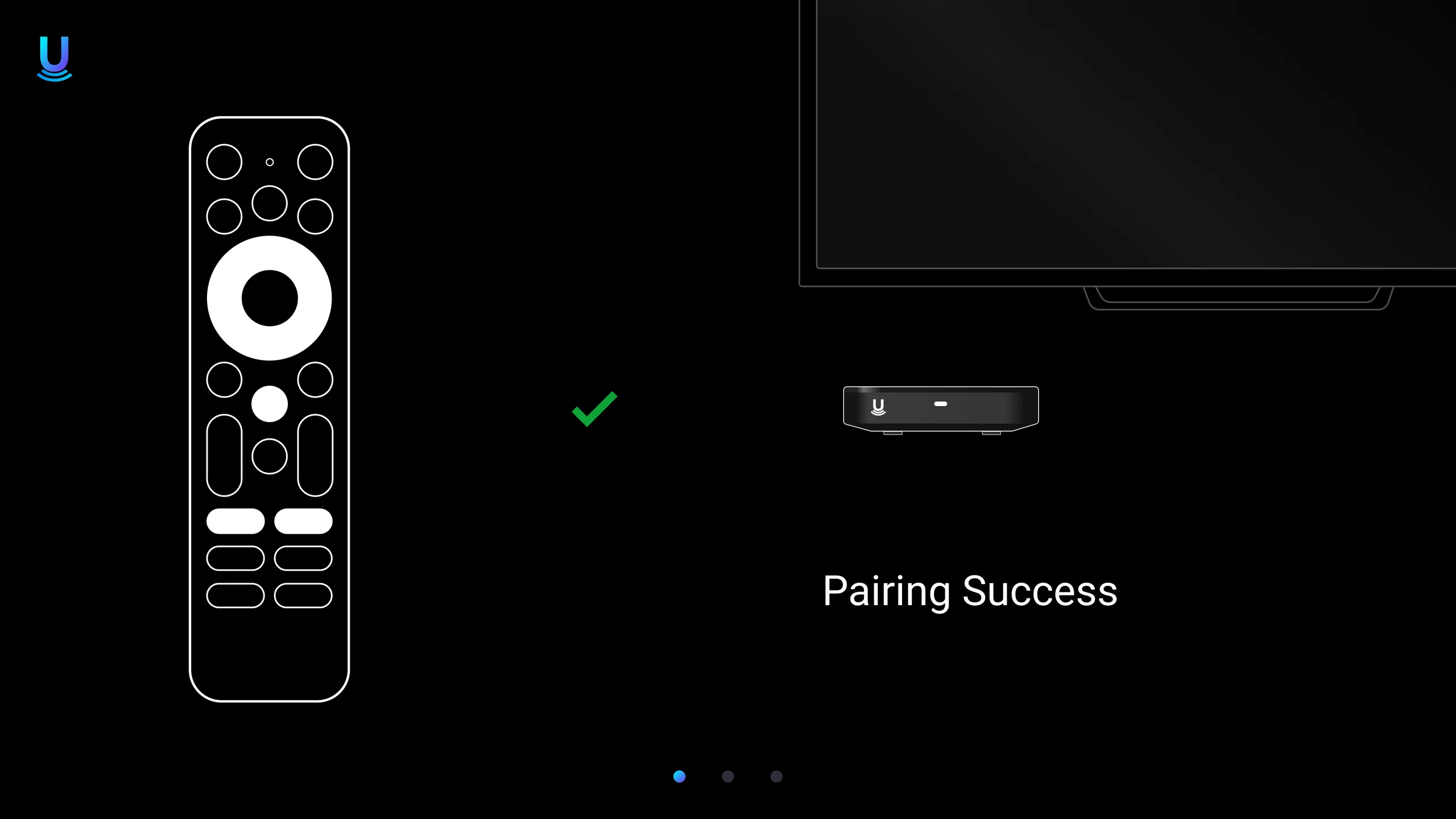
- Show the hardware. Pairing uses a drawing of the actual remote and box, shows which buttons to hold and for how long, and mirrors the LED as it flashes.
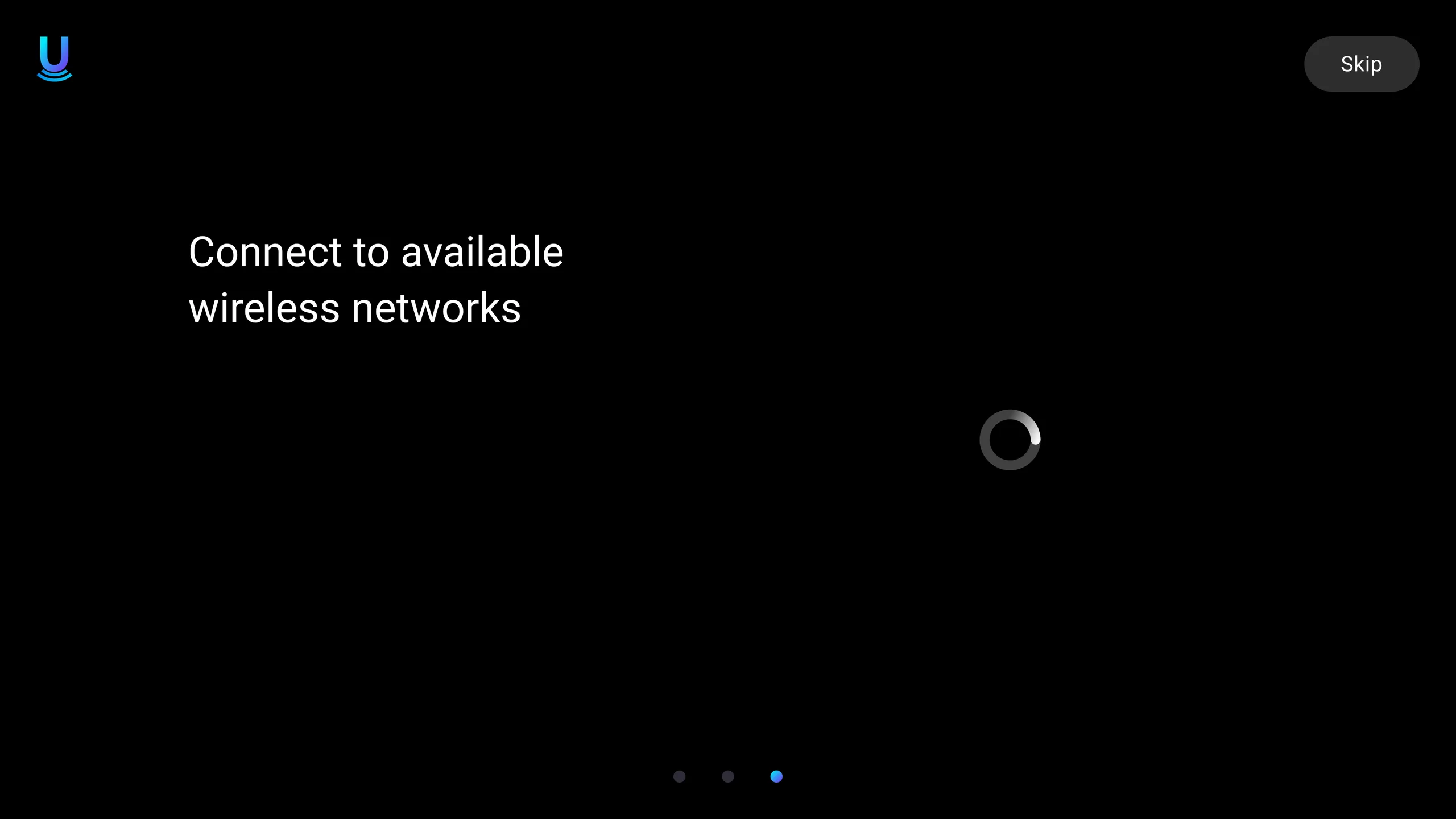
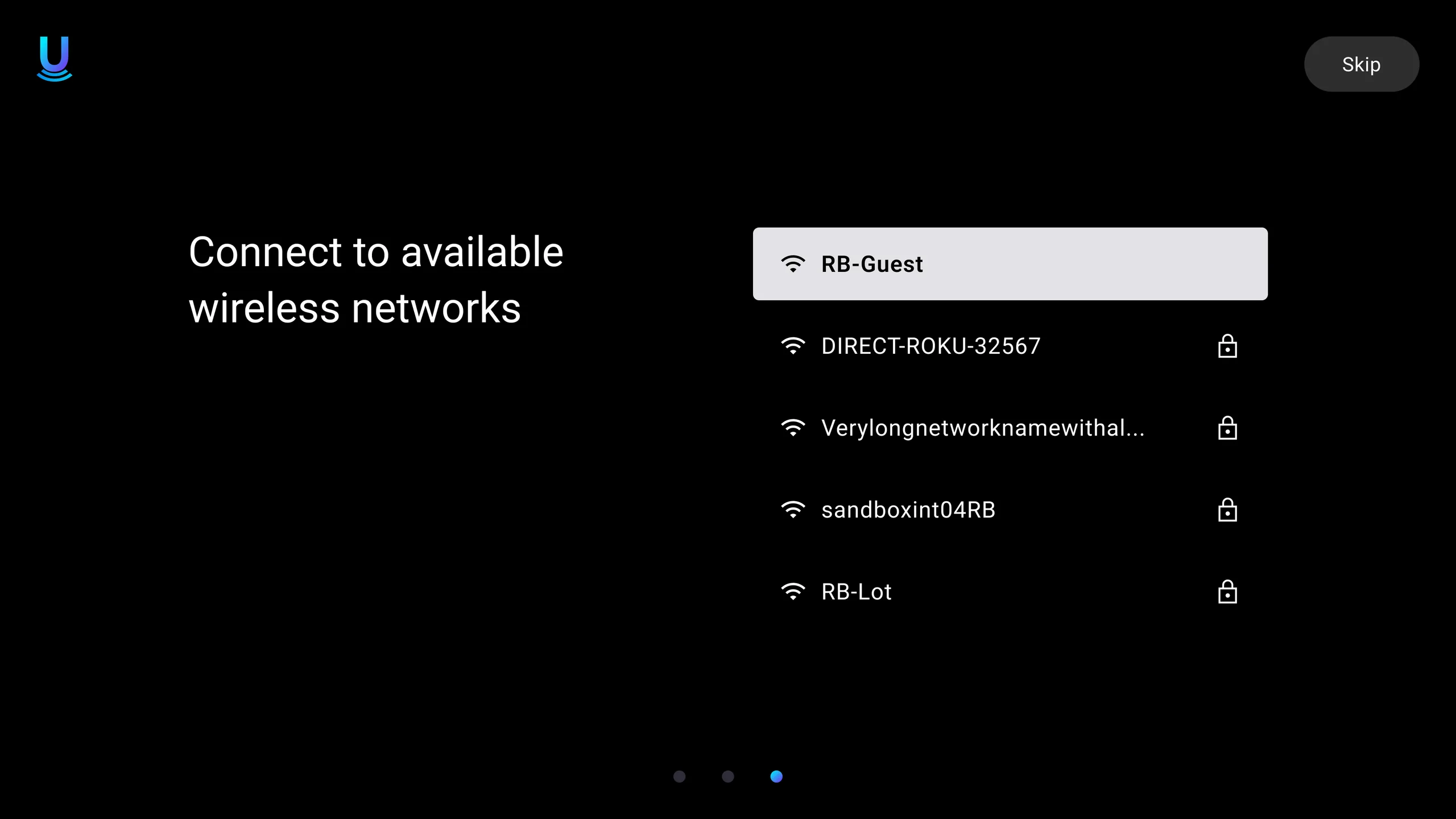
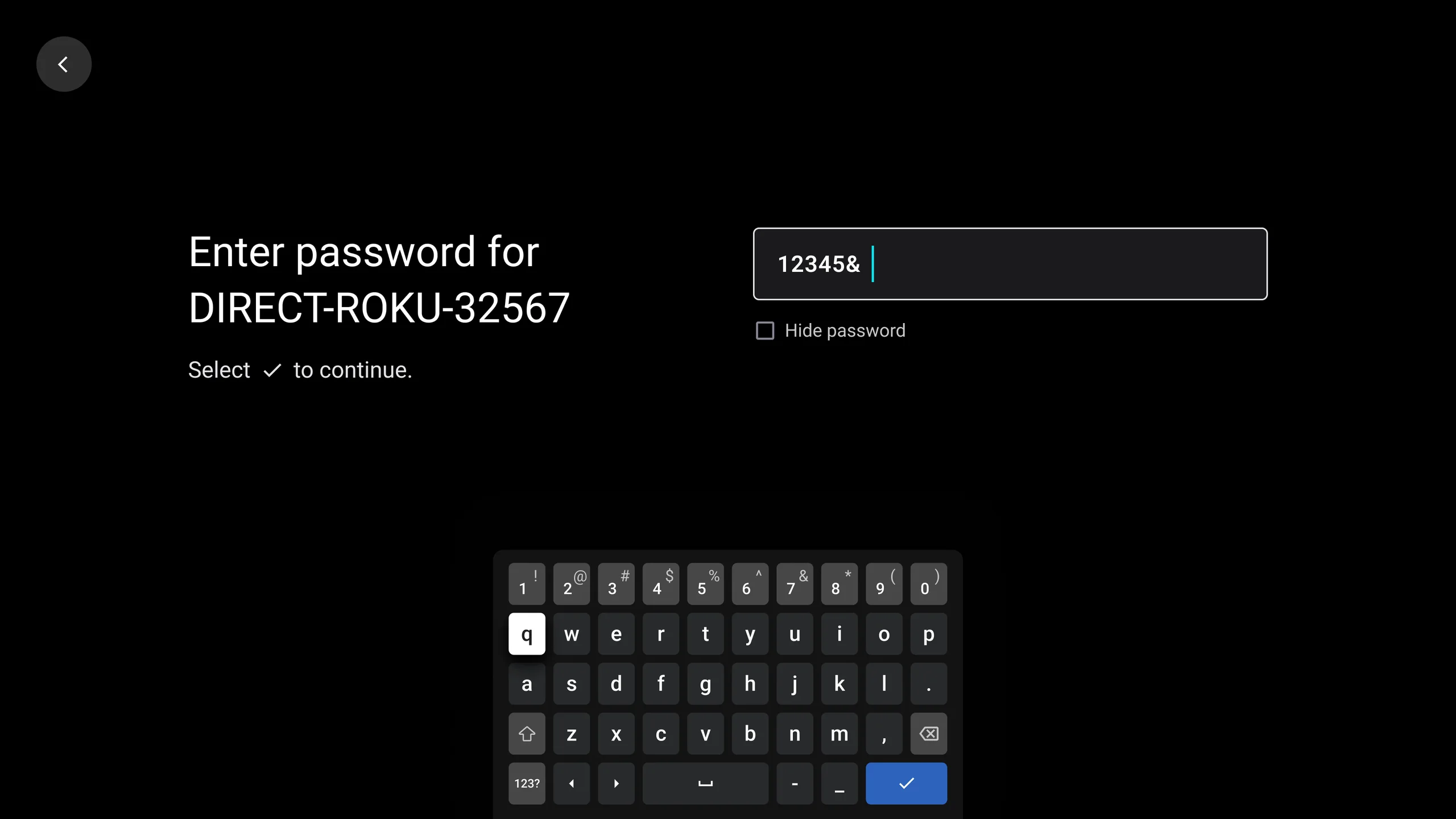
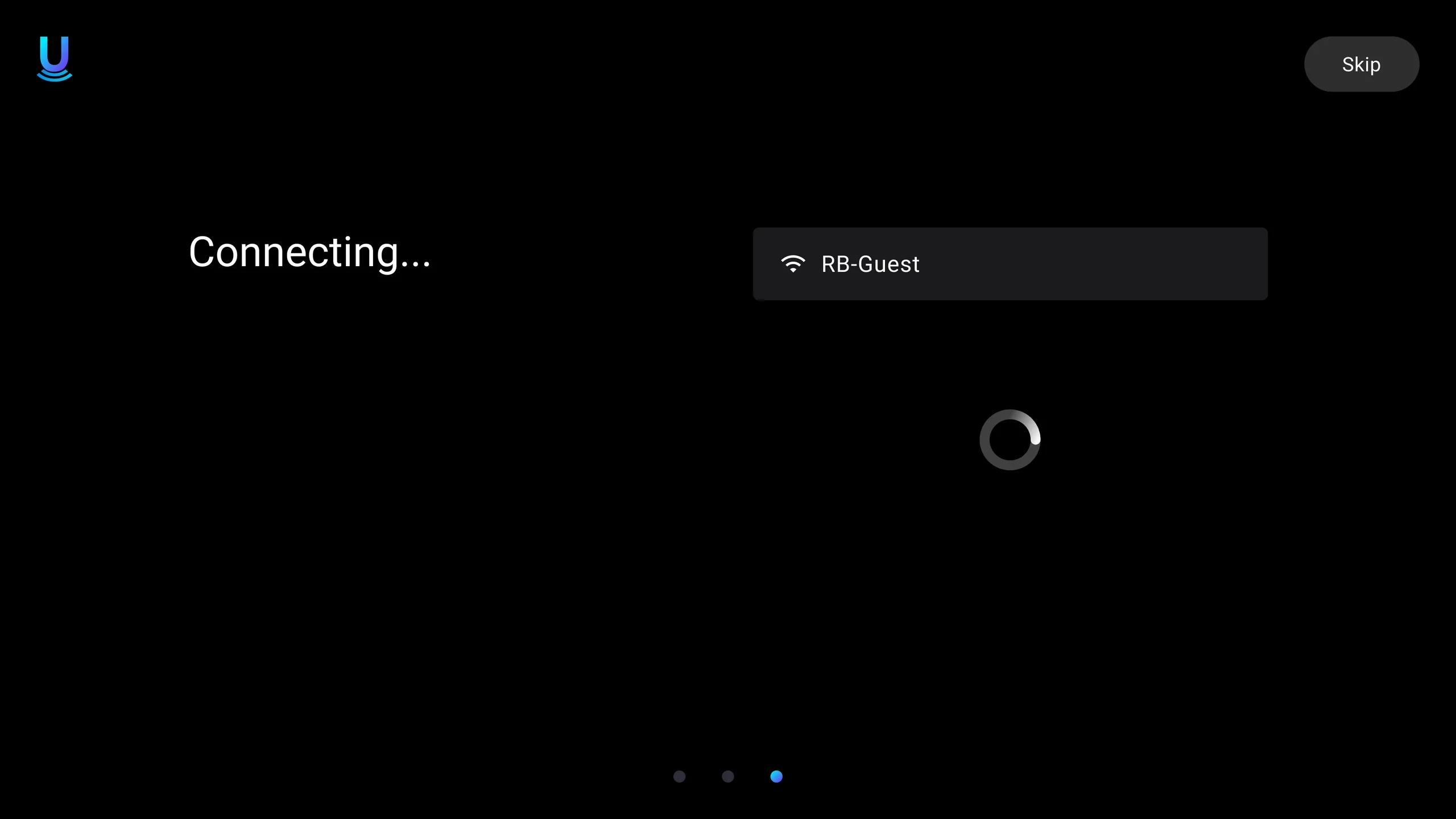
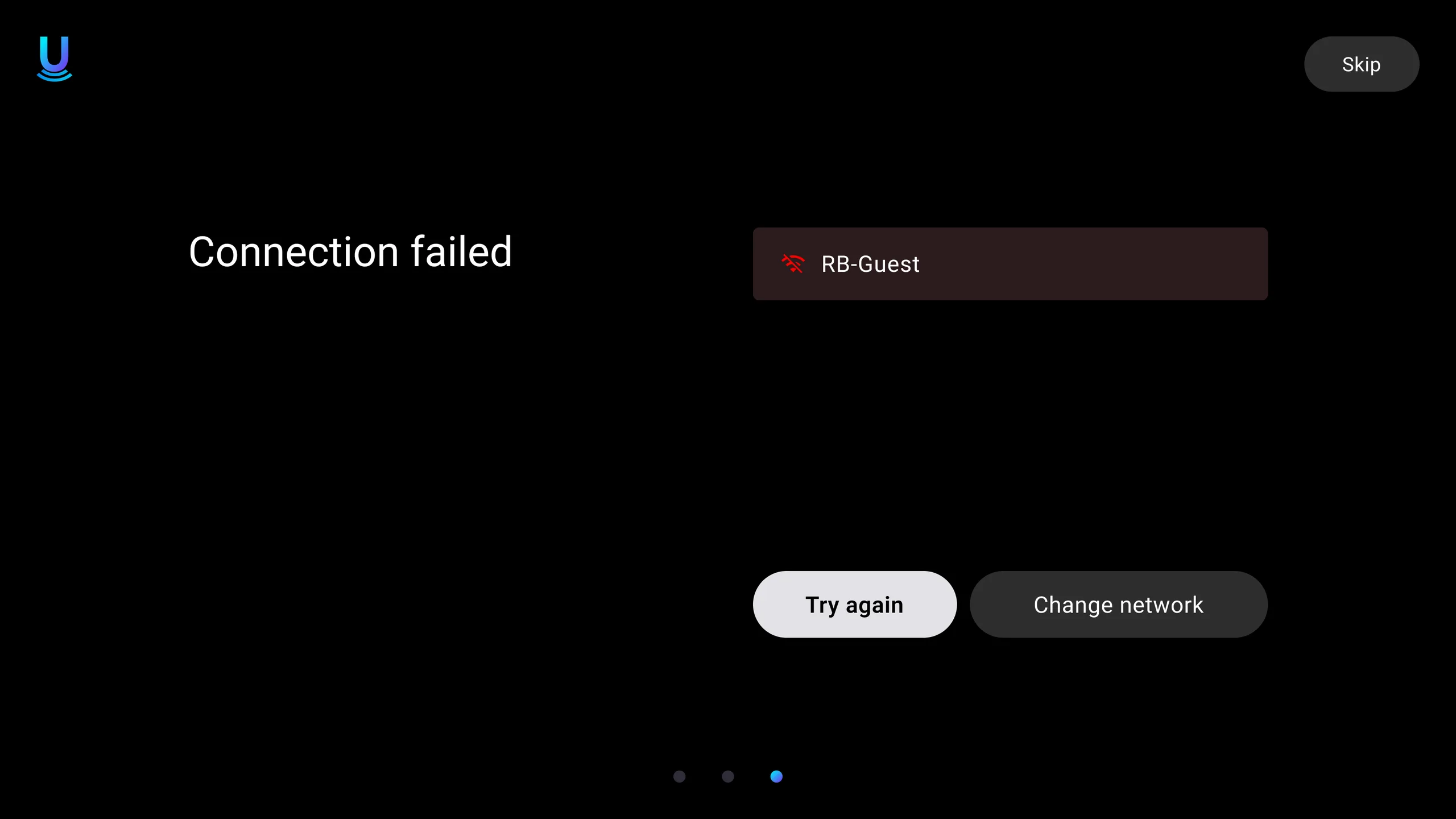
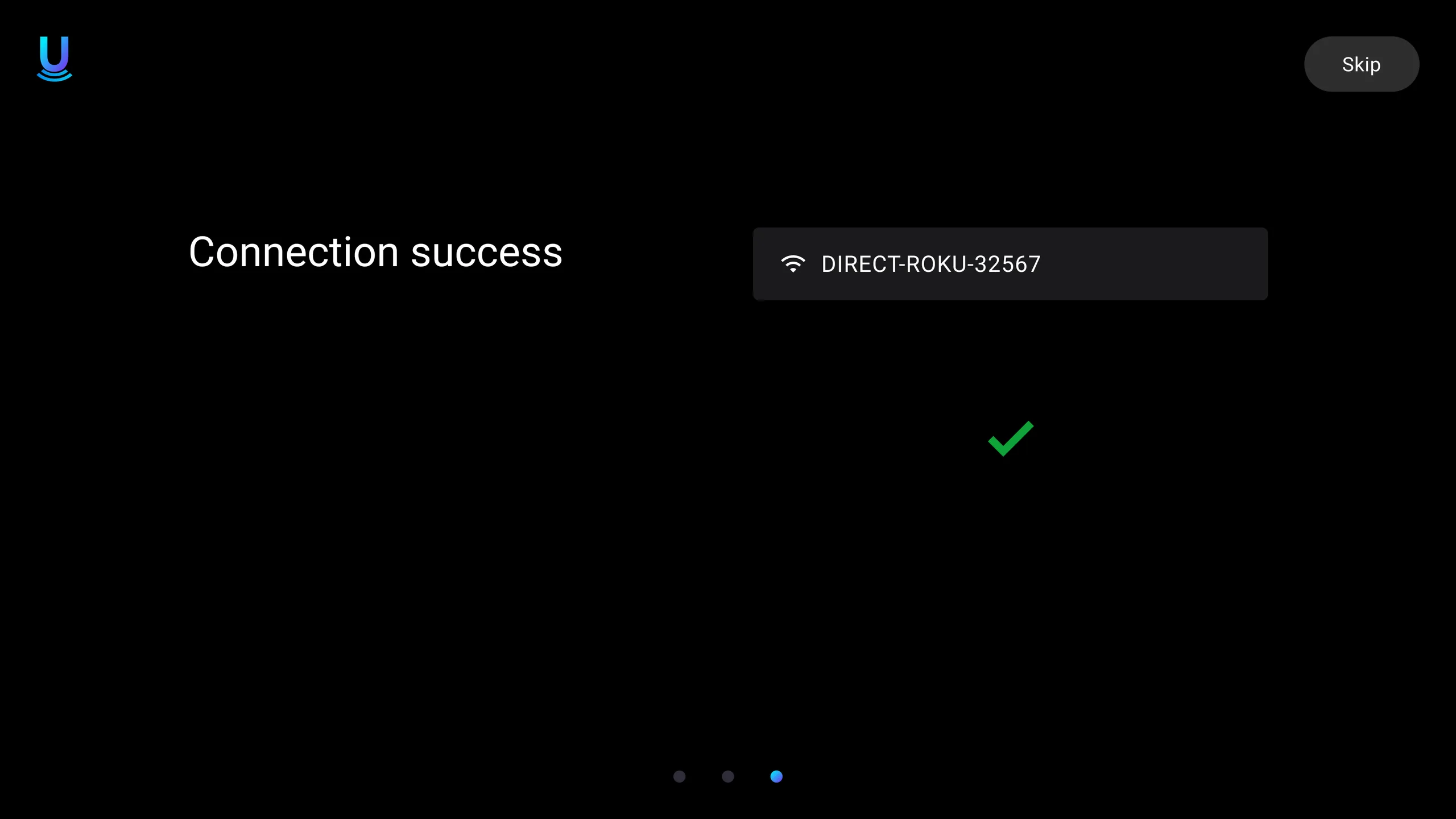
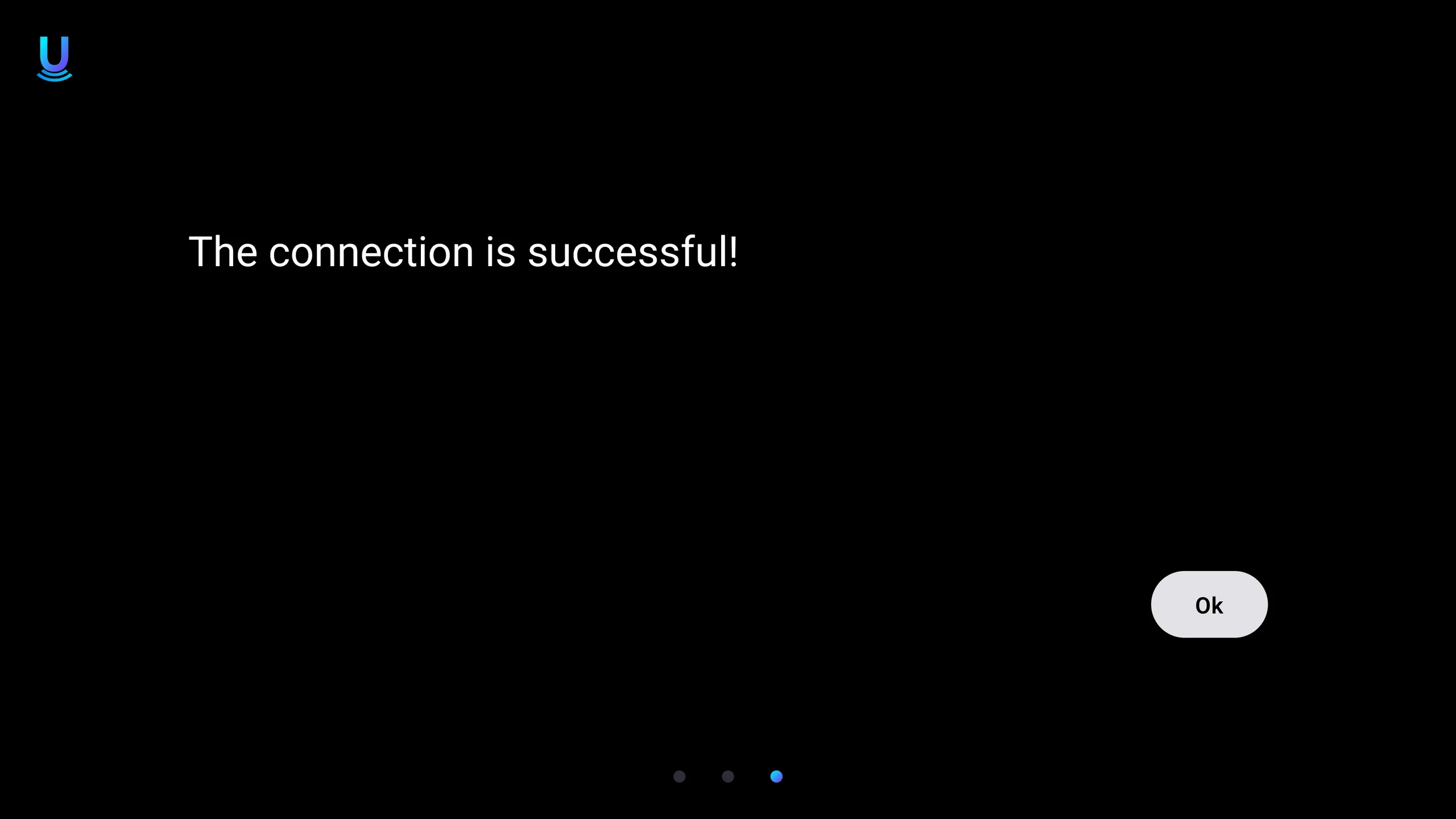
- Plan for real networks. The Wi-Fi list handles locked networks and very long names. Connecting, failed (try again or change network) and success each have their own screen.
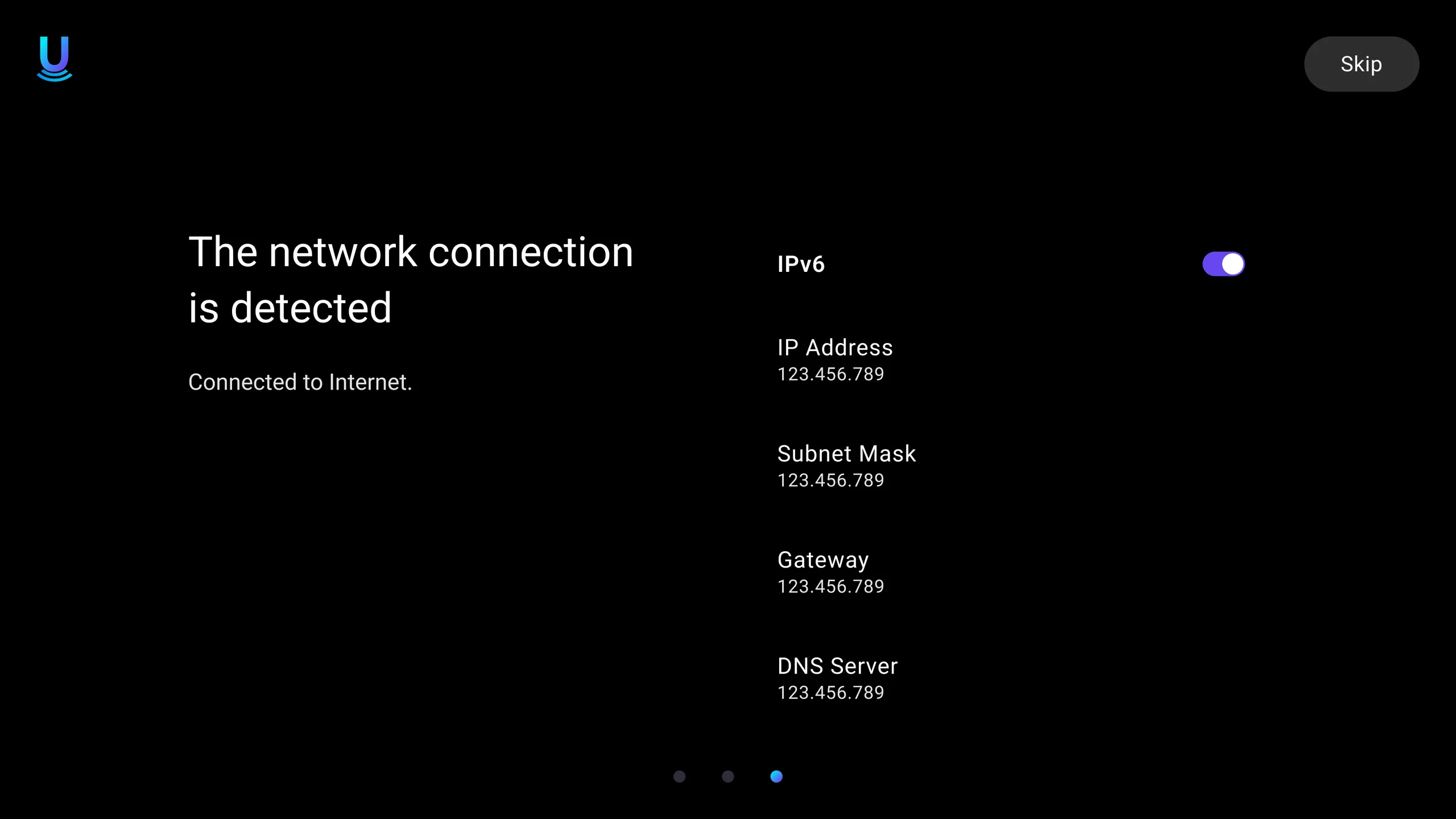
- Two paths, one ending. Ethernet gets its own steps: a prompt to plug in the cable, then the detected connection with its details (IPv6, IP address, subnet, gateway, DNS) before the same success screen.
Key responsibilities
- Flow mapping of the complete setup, including branches and errors
- Screen design for each state
- TV focus, back and skip behaviour
- Instructions for remote pairing and network setup
Language
Remote pairing
Network